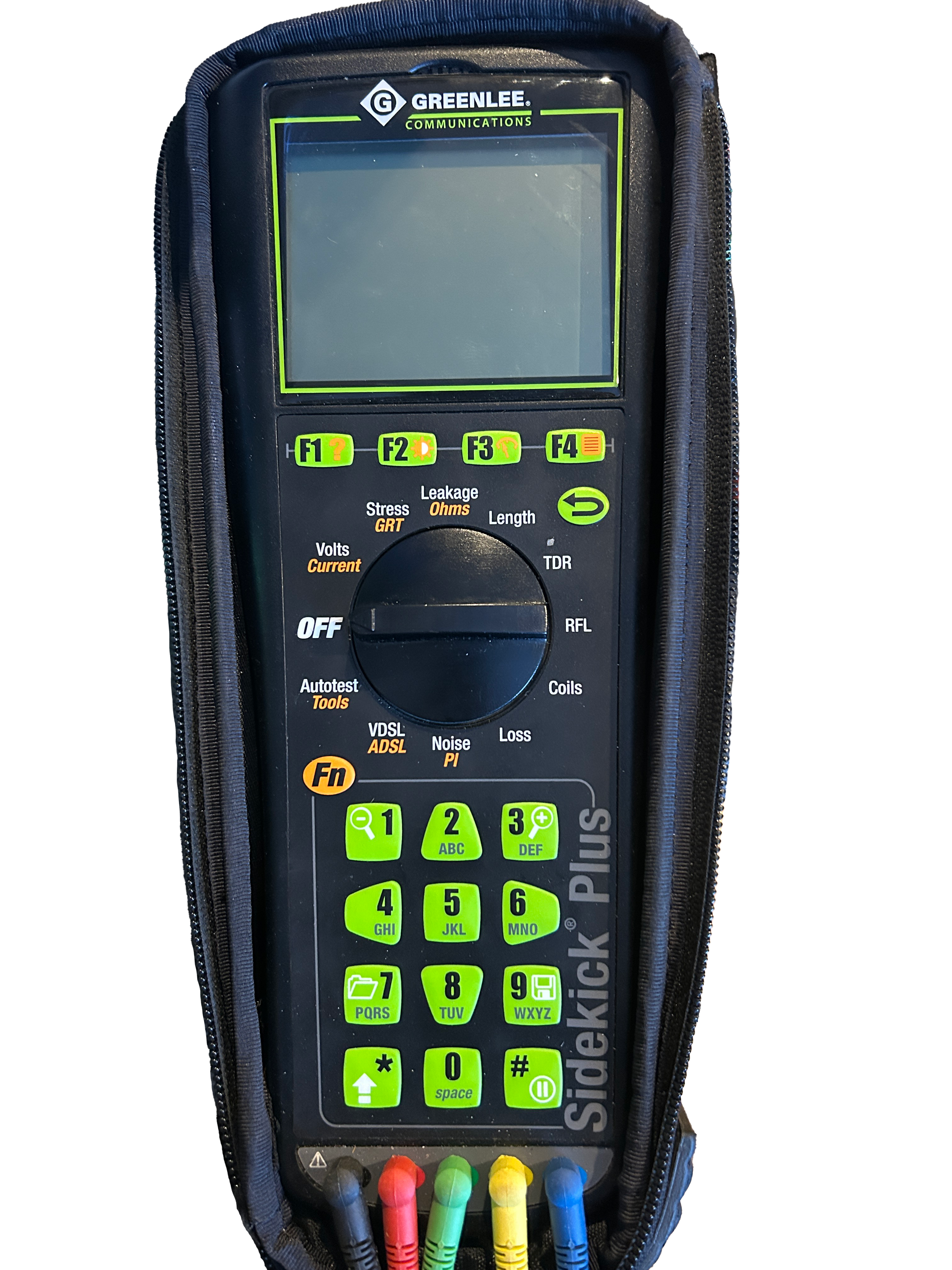
Tutorial on how to connect the Greenlee Sidekick to your computer
The first step it to install the software that initialize the connection with the Sidekick which is the Windows Mobile Device Center.
Download: DrUpdate

Download and install Windows Mobile Device Center fix(WMDC)
Download: WMDC-Fix
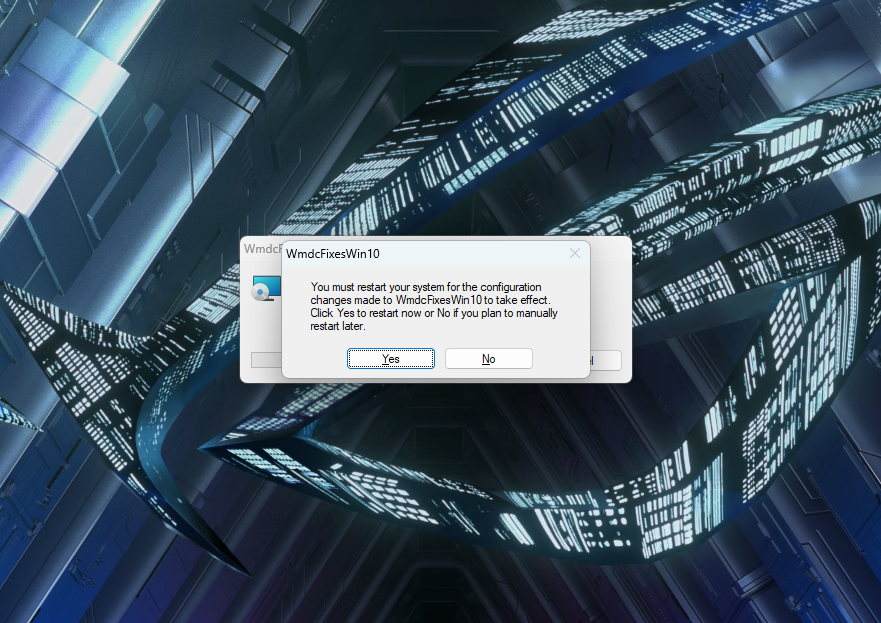
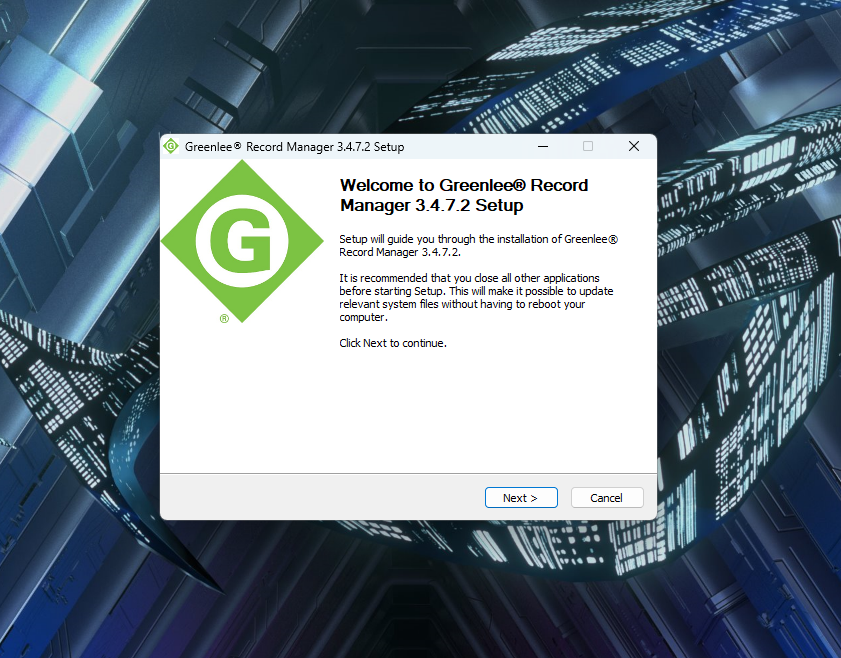
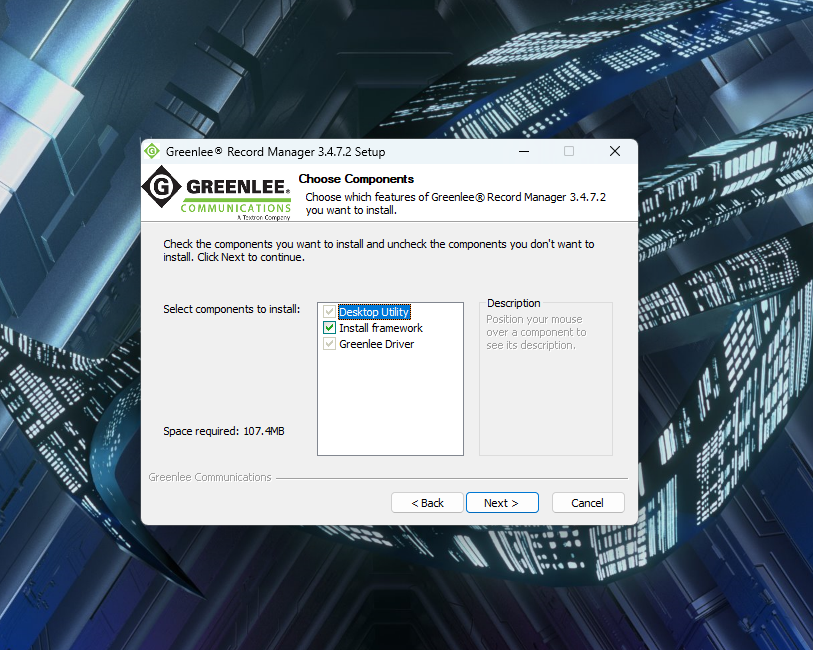
After restarting your computer, you can then download and install the GreenLee Record manager.
Download: Record Manager
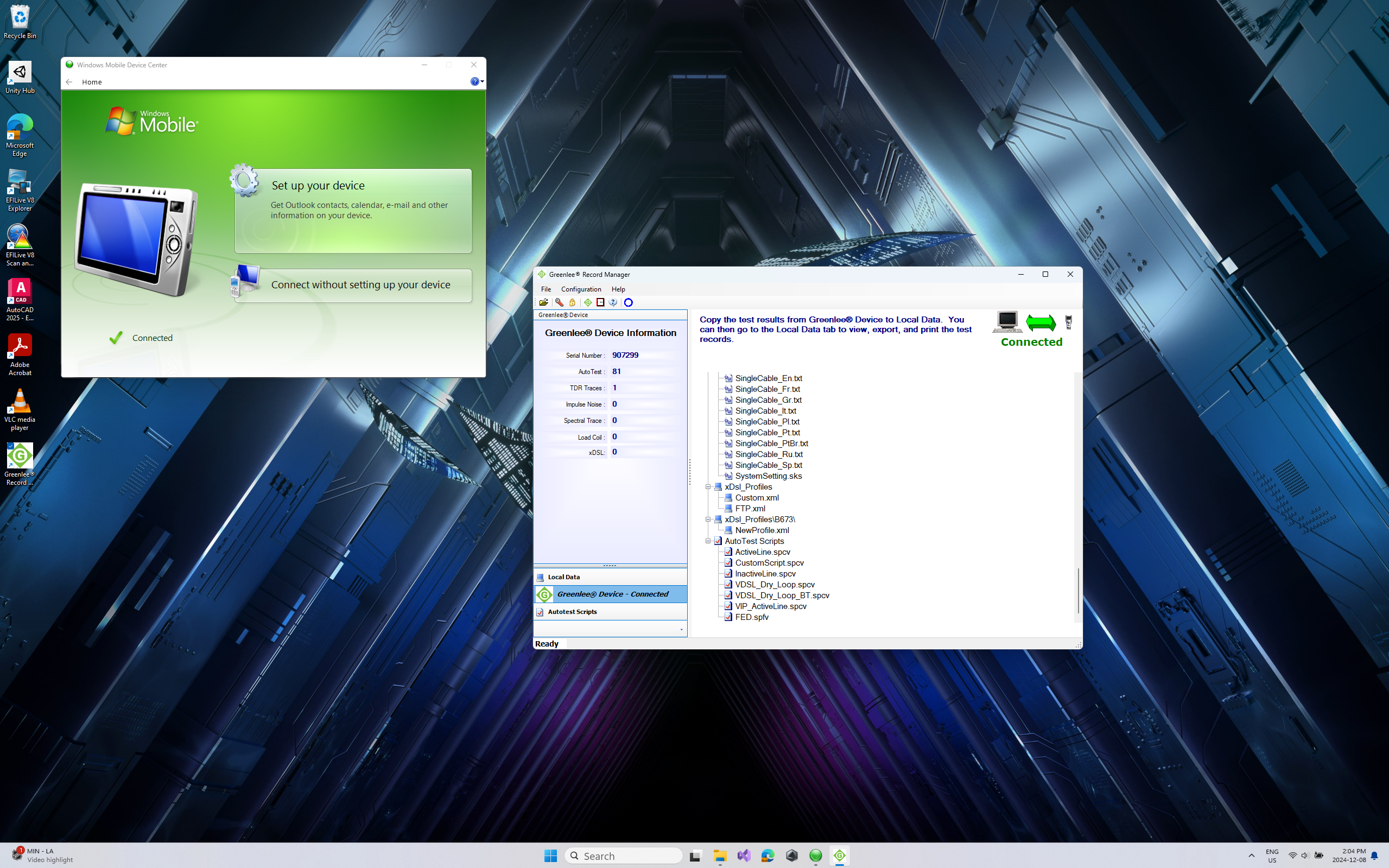
If your Greenlee sidekick does not connect, please send me an email. There is multiple patches that can fix the issue you may encounter.
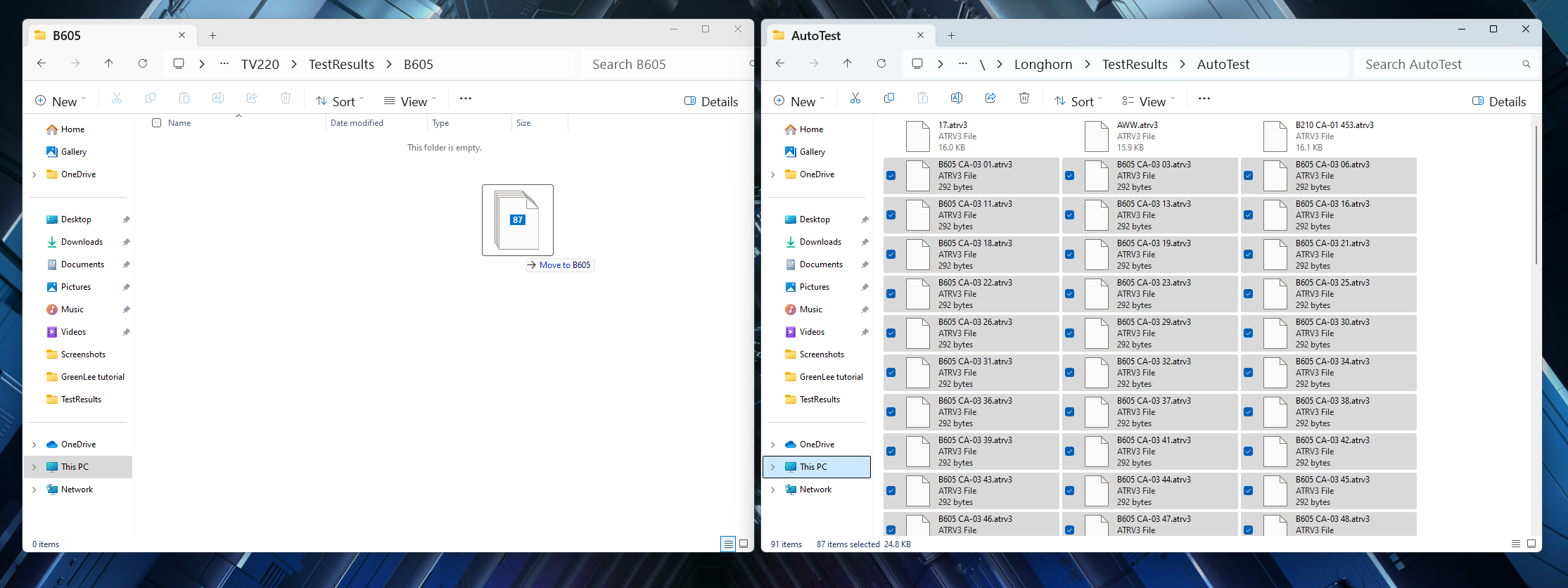
If your Greenlee sidekick is connected, you can follow below to create shortcut to transfer files faster.
This step is only to make the file transfer faster from the Greenlee sidekick to your computer since the file transfer using the record manager software is very slow.
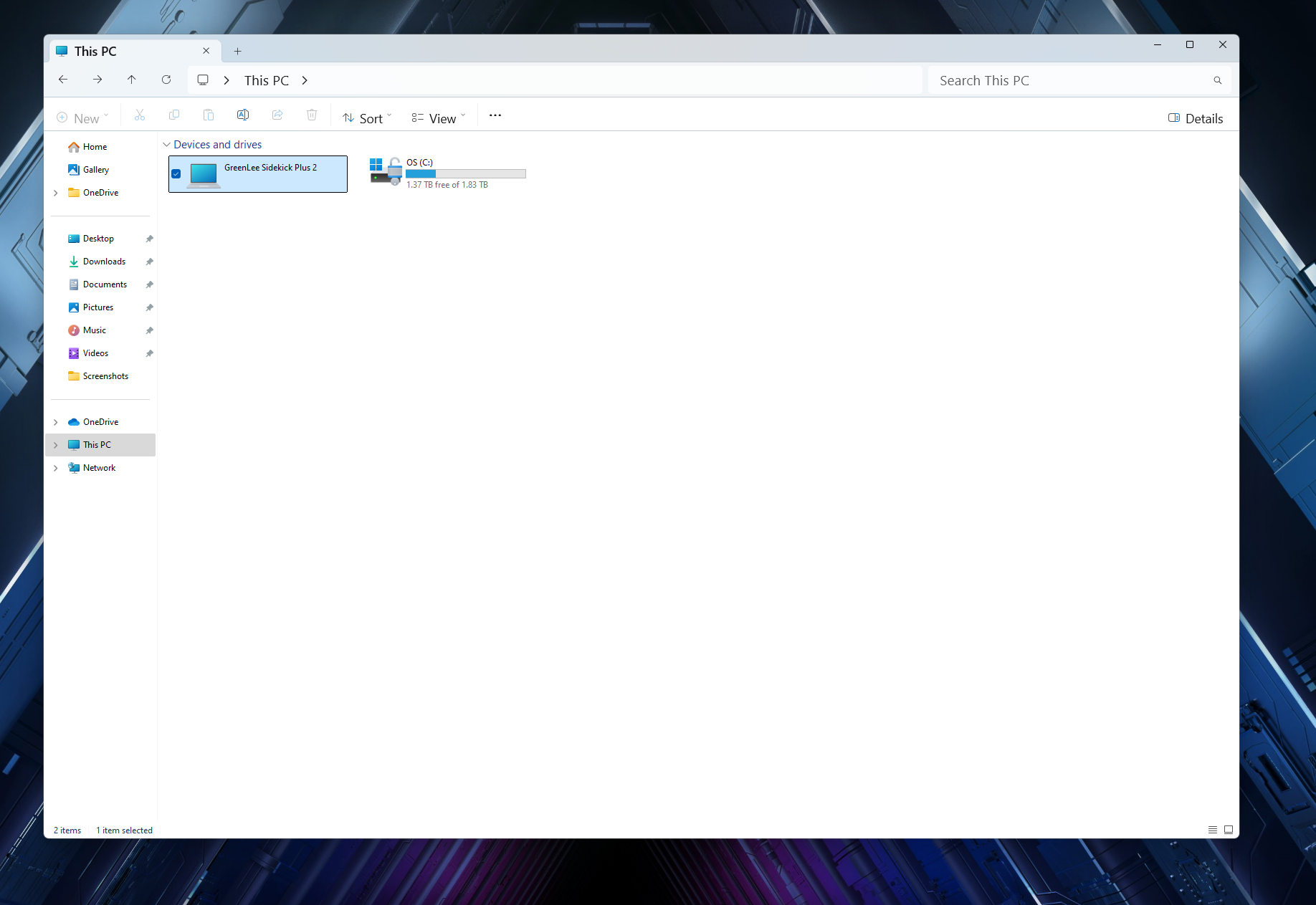
Open file explorer and navigate to your PC.
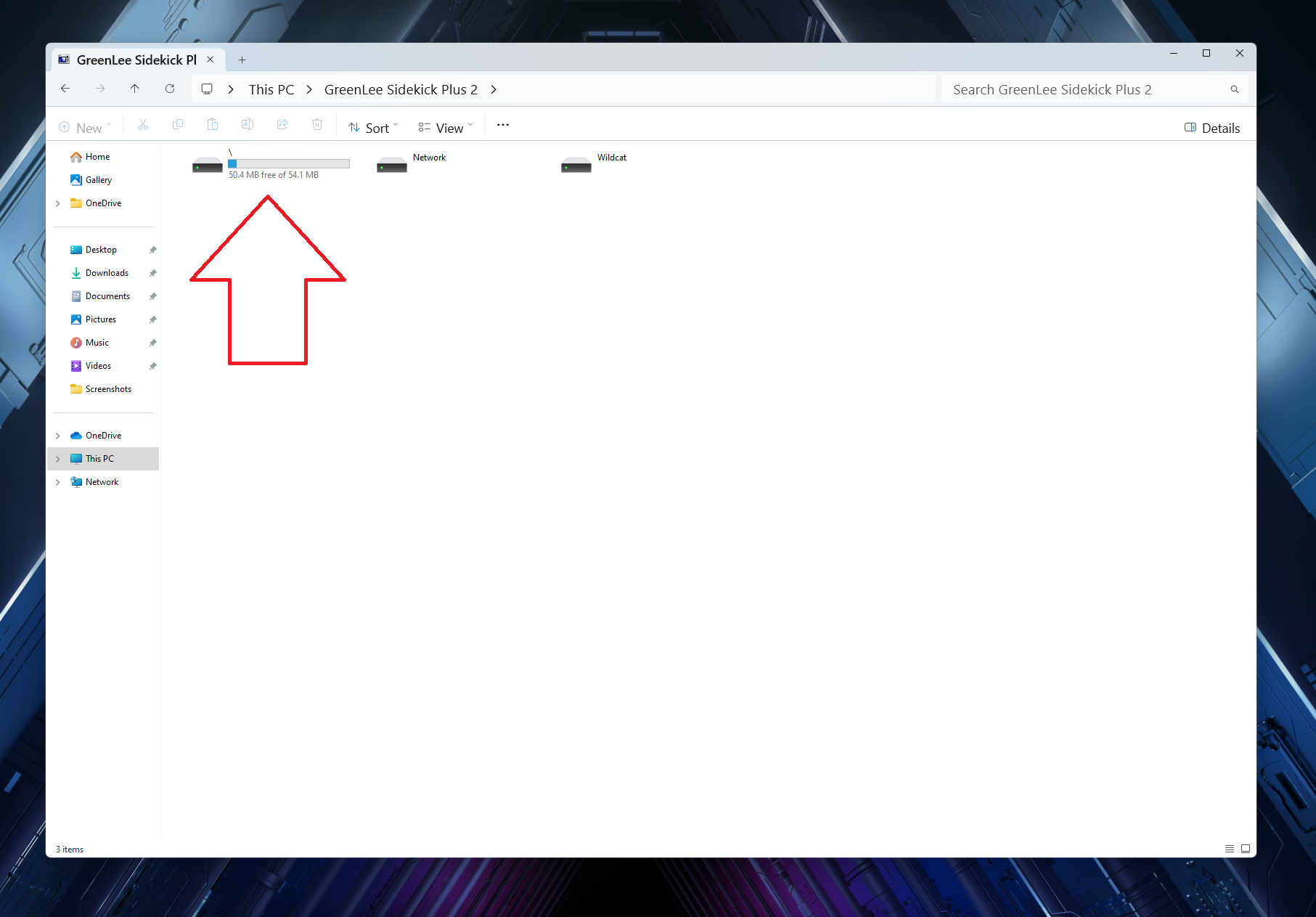
Navigate through the Greenlee file system.

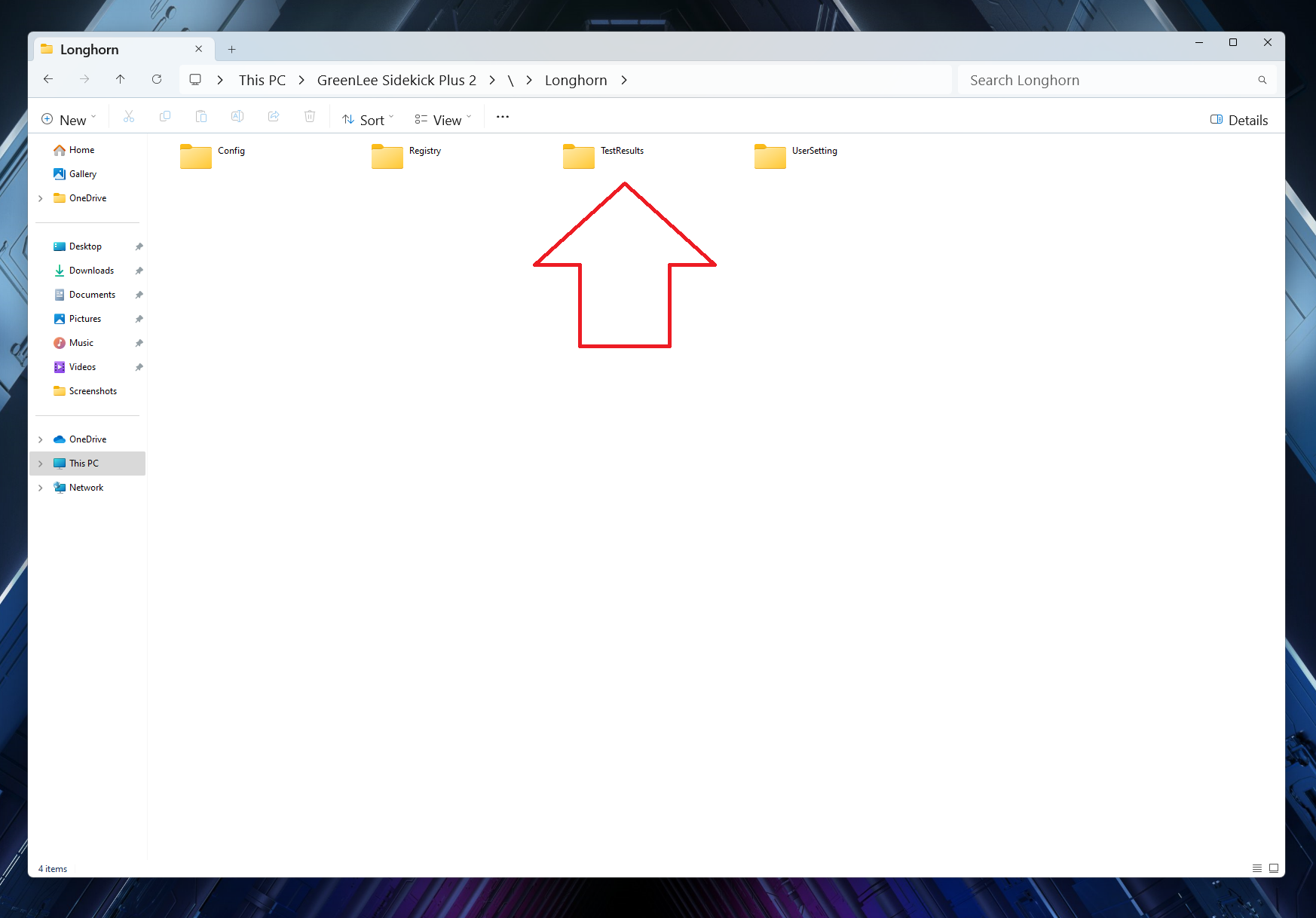

Each folder will contain the files that can be manually moved to the Record manager folder.
Open a new file explorer window.
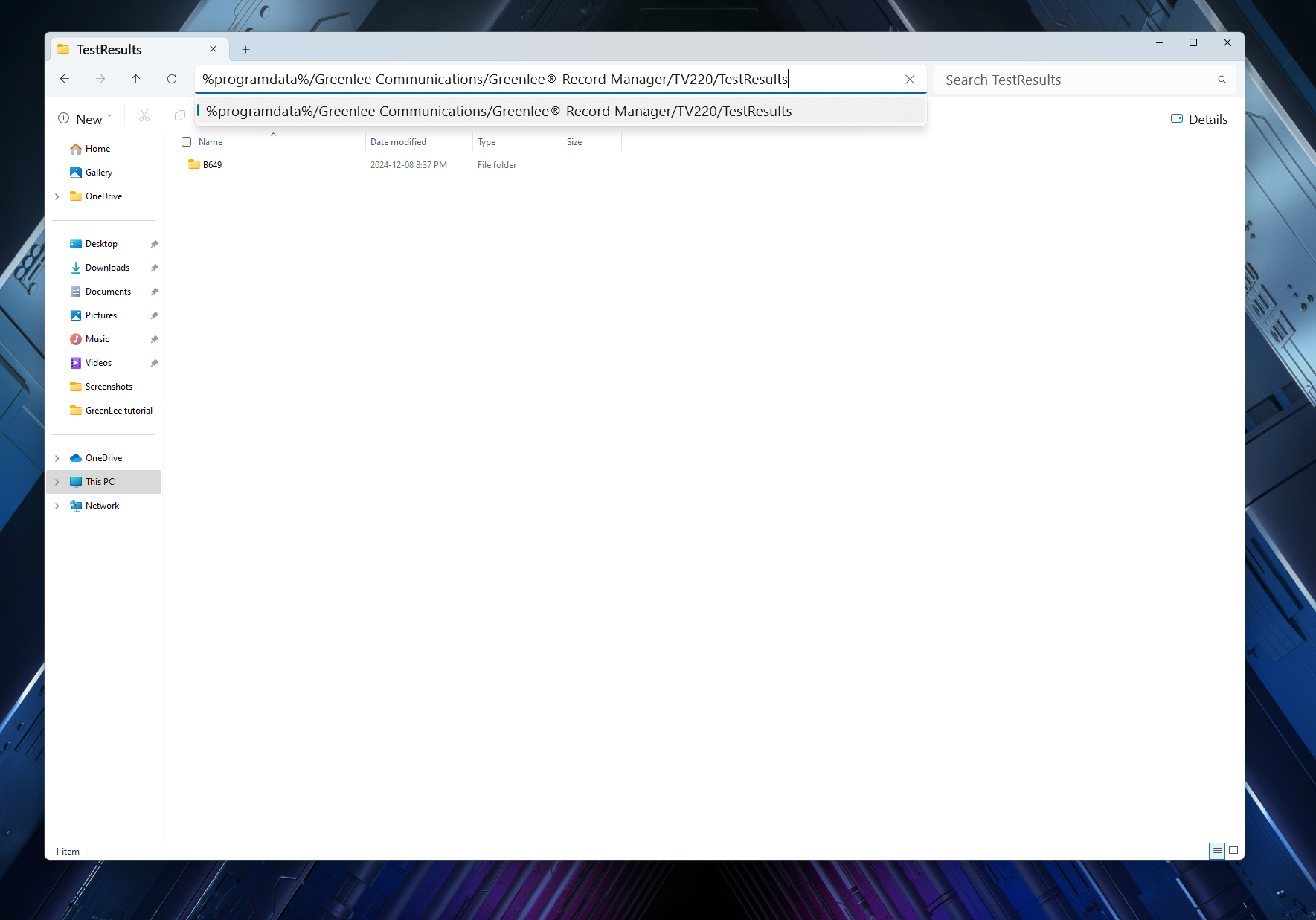
Writing this long line shown above might be dificult so below are 2 options to avoid trying to write it:
-By writing "%programdata%" in your file explorer and using "/" it should show you a drop down to the next folder option.
-Alternatively, you can write only "%programdata%" then press enter then navigate to the record manager test folder.
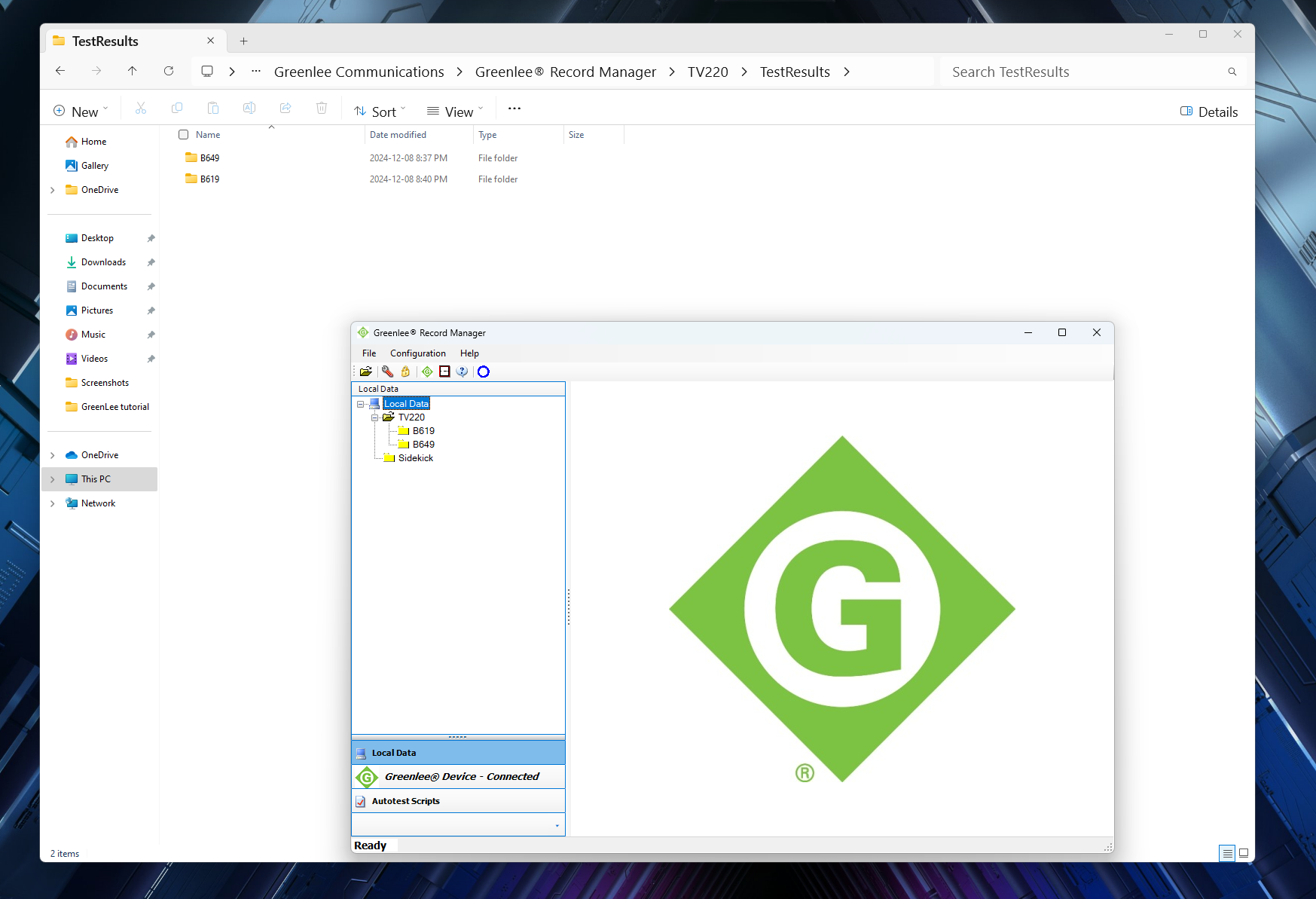
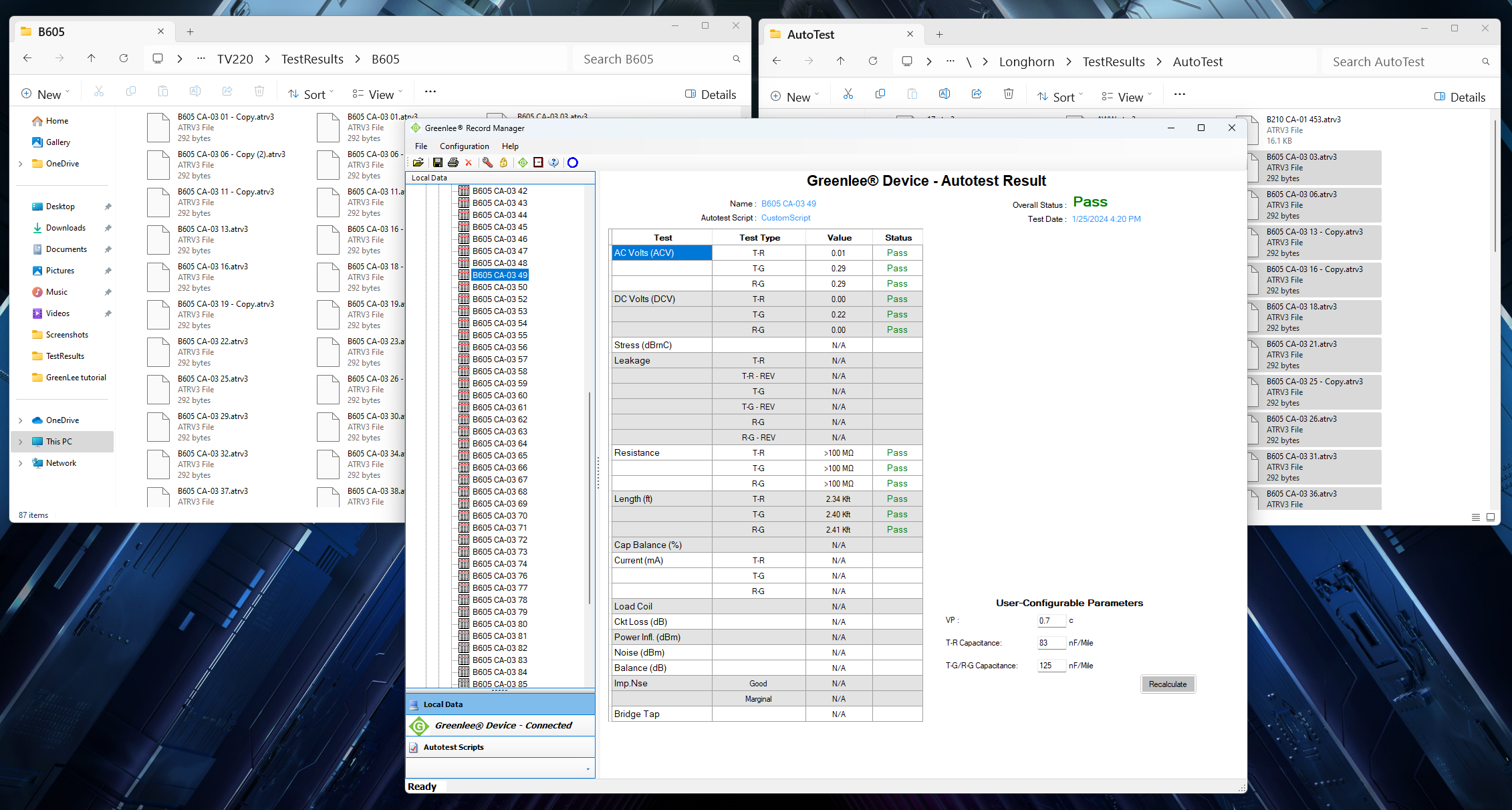
In this folder, you can make your own folder structure that will be shown in the record manager software.
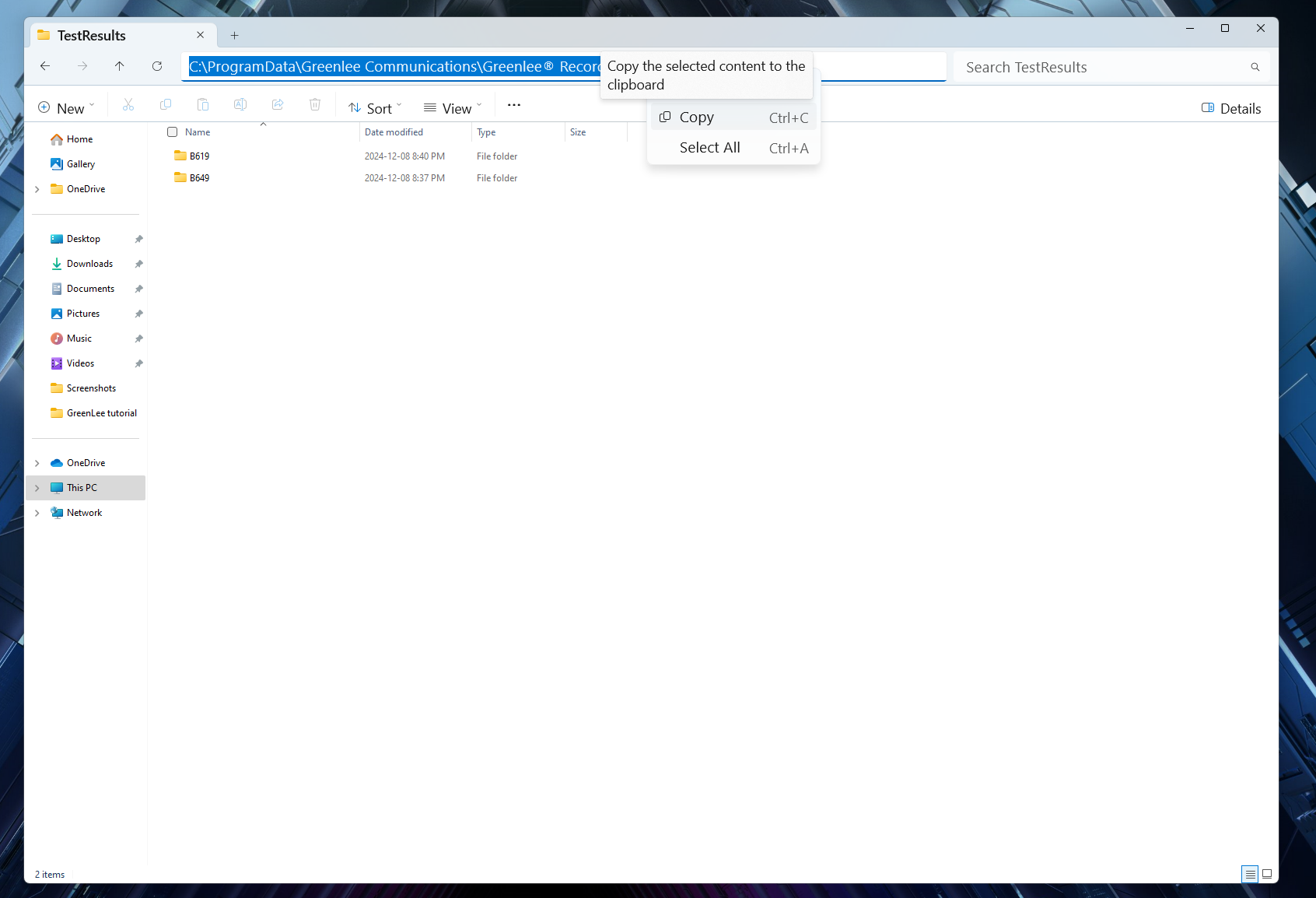
To make it easier to reach this folder, highlight the path in your file explorer to create a shortcut.

Right-click on your desktop then select "New" then "Shortcut"
You can then paste the path to the record manager folder.
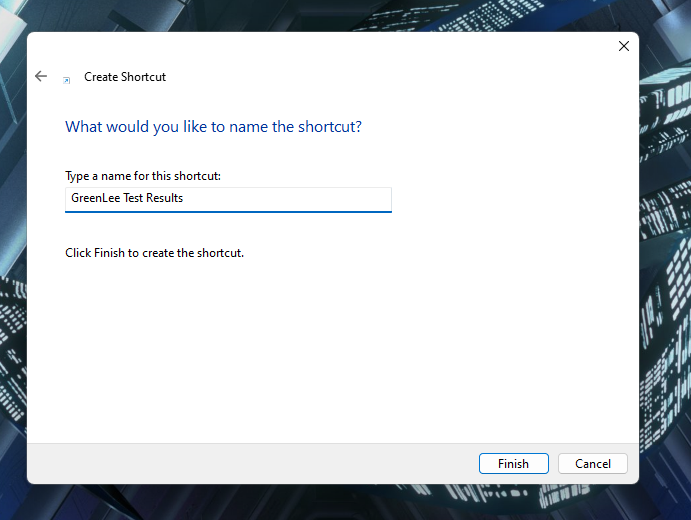
You can decide how you want to name this shortcut. You can also rename this shortcut without breaking the link.